




Requirements
One Page Checkout 2 runs on Virtuemart 2.0.0 to the latest version {latest} - we update the files on each Virtuemart release. In general we support only officially released stable versions of Virtuemart and we don't recommend to use beta versions or SVN builds. It is multilanguage ready and supports all known 3rd party shipping and payment extensions. For further compatibilities, please write us or see the 3rd party extensions compatibility list.
Joomla versions: One Page Checkout 2 runs on Joomla 1.5, 1.7 and 2.5 and we also added a compatibity for Joomla 3.3 and upcoming Virtuemart 3
We develop our component on Linux servers and test windows localhost only once a year for full functionality. Therefore it is recommended to run OPC on linux servers, even when the windows servers are also supported.
March 2015 - FTP Installation guide in case you get Manifest file not found
FTP Installation is available at this link
Video Guide for FTP Installation
Download our unzip.php file from here
May 2014 - Recommended Installation Steps for One Page Checkout 2
0. Download -> There are no direct links working for OPC download. You must be logged in to our site for all of the links to work. During the checkout you will receive your password and you can use your registered email as username. Once your order is paid (via paypal or cardpay) and automatically confirmed, you can download One page checkout from our download section when logged in.
Update:
Since OPC2 for VM2 reached 2MB package size, we decided to issue two versions of OPC. Both versions are identical, but OPC Mini does not include all of the themes and is optimized for hostings that allow only up to 2MB upload size.
1. In case you are updating, remember to backup your themes or rename the theme directory so it does not have the same name as one of the included themes (/components/com_onepage/themes). You can use OPC backend (display tab) to rename the theme before update. This needs to be done just once.
2. OPC2 of Dec 2012 requires the following directories with write permissions:
/components
/administrator/components
/libraries/joomla/document (to create own document handler with component installer)
/plugins/system (to create OPC plugin with component instaler)
after installation the only write permissions can remain on the configuration file:
/components/com_onepage/config/onepage.cfg.php
/plugins/vmpayment (for opc affiliate plugin)
3. Install with Joomla installer - if you get any sort of error while installation, let us know. Most of the problems are caused by the write permissions issues or by the incorrect path to the /tmp directory set up within the configuration.php file (Joomla Global Config). It is recommended to have at least 64mb or RAM per php process (for unzipping) and 30 second timeout for php in case of slow servers. We do not test on windows localhosts. These are the most common installation issues
- missing XML file (resolution - check your tmp path in configuration.php and all of the above permissions)
- could not copy ... (please check the permissions above)
- blank screen (usually a php timeout when your server is slow on unzipping and copying files - happens on virtual servers which lack of IO speed)
- Fatal error ... basket.php ... (resolution: You are installing OPC1 on VM2. Please login to our site and download OPC2 on the right side of the download section)
4. Proceed to the configuration and click save.
5. At the front end visit the cart. At the first load of One page, the CSS might not get loaded properly due to Joomla caching mechanisms. This problem is solved after the first visit and does not encounter again.
6. IMPORTANT: OPC uses both -anonymous- and -default- shopper groups for unlogged users and therefore you may need to check if all of your calculation/shipping and payment plugins loaded properly after installation of OPC.
7. Design customizations are not included in the basic subscription of One page checkout, but we provide full support for all bugs that you can find within OPC other then design. One page checkout 2 includes 4 completely styled themes (dec 2012) and we believe that at least one will fully match your needs. Theme modifications usually require a few CSS work which can be mostly done in /components/com_onepage/themes/YOUR THEME/onepage.css or per sections in all other files in this directory.
If you get an error - Installation package not found, please download OPC mini version so it meets your Upload file size limit. If the unpacking takes longer than 30 seconds, you also may need to install the mini version.
8. (optional) To install extra themes that are not included in the mini package, you need to unzip the full package to your local compater and copy all themes from /site/themes to your OPC installation /components/com_oneapge/themes Your newly copied themes will automatically show up at the display tab.
One Page Checkout 1
One Page Checkout 1 runs on Virtuemart 1.1.2 to 1.1.9 and Joomla 1.5. It supports Joomfish and many other 3rd party Virtuemart extensions.
Php versions: One Page Checkout 2 and One Page Checkout 1.1.x were tested on php 5.1, 5.2, 5.3 and 5.4.
January 2011 - Recommended Installation Steps for One Page Checkout 1
1.OPTIONAL STEP: Backup your language files in Virtuemart folder /administrator/components/com_virtuemart/languages/common and your basket.php in /administrator/components/com_virtuemart/html/basket.php
2. If you upgrade from a previous version of OPC please backup your OPC template files in /components/com_virtuemart/themes/default/templates/onepage as the default files will get overwritten. One Page Checkout 1 needs these write permissions:
/administrator/components
/components/
/administrator/components/com_virtuemart/html
/administrator/components/com_virtuemart/classes
/administrator/components/com_virtuemart/classes/payment
/components/com_virtuemart/themes/default/templates/
/components/com_virtuemart/themes/ YOUR THEME/user_class (optional)
3. Install with Joomla installer
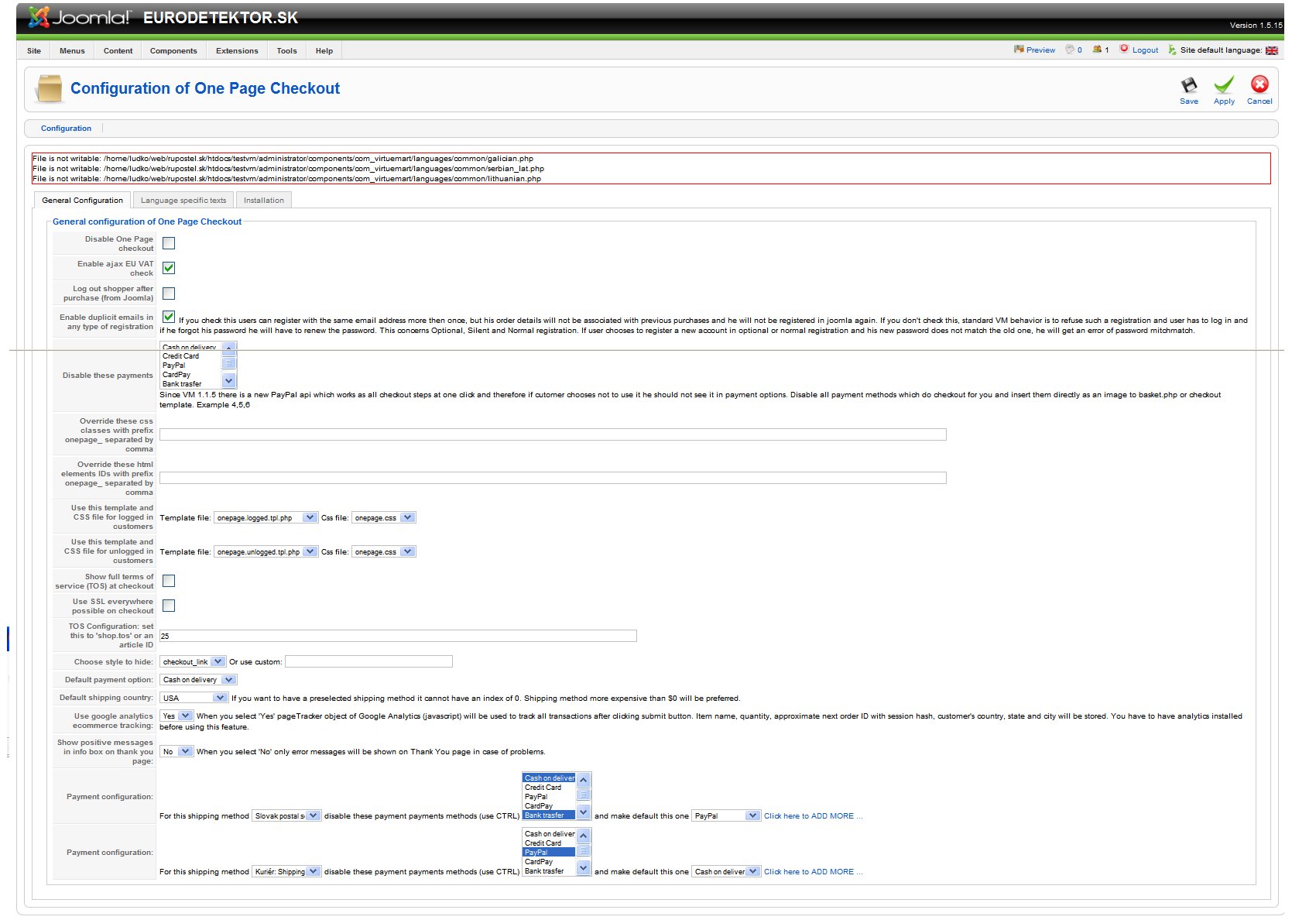
4. Go to Components -> One Page Checkout -> Configuration, (optionally change the configuration) and click SAVE
If you don't save the default configuration after install you may get php notices of missing variables at checkout page or javascript errors.
5. Test it -> Make a test order and see if everything is as should be. By default your Virtuemart template files are used to show the checkout. If you want to override them you can follow template installation steps.
Template installation (since version 1.2.146) OPTIONAL
After installing OPC (or upgrading) you can copy content of OPC template files to your own directory in this example path: /components/com_virtuemart/themes/default/templates/onepage/YOURNEWTEMPLATE You can copy these files and directory: onepage.logged.tpl.php, onepage.unlogged.tpl.php, onepage.css, overrides (directory), index.html should be located in every single directory for security reasons.
The path for One page Checkout for Virtuemart 2 is:
/components/com_onepage/themes/ YOUR THEME/
Overrides directory
You can copy any of your Virtuemart template files here and modify it for One Page Checkout as you want. They will be automatically loaded from here at the checkout page. The only exception are basket files like basket_b2c.tpl.php and basket_b2b.tpl.php, they are searched by file called basket.html.php See the one attached in standard distribution. For basket files to work you must check "override basket" in the configurator or "use shipping as select box in the basket" or "use payment as select box in the basket".
For upgrading from an older version of OPC, you can follow this guide to upgrade template files.
Previous versions
Since October 2010 OnePage Checkout component can be installed via Joomla installer.
Installation
- Install via Joomla installer
- Backup your language files in /administrator/components/com_virtuemart/languages/common and /administrator/components/com_virtuemart/html/basket.php (only files that get modified) New language variables with prefix ONEPAGE will be inserted
- Configure onepage checkout, from a link after sucessfull installtion or from menu and click save. Only changed language variables will be saved. Other files will not be touch. You should get a message "Configuration saved".
- Go to Installation tab and choose installation method:
- shop.cart will overwrite your basket.php and will use your normal basket page as checkout page, everytime a customer click on "add to cart" and "view cart" he will see the cart including checkout
- if you choose redirect to component installation method, the customer after coming to your shop.cart page will be redirected to the component page. The only advantage of this solution is that you can set up itemId of it and disable or enable additional modules in Joomla for this page. Redirect is done by javascript as a test of javascript. You can also add com_onepage to any menu in Joomla and customer will see the basket including checkout there.
If you are upgrading please consider rewrite of your template files in installation tab. We might have added new elements there to support new features.
How to reinstall - One Page Checkout 1.2.x for Virtuemart 1.1.x
- backup yoru themes from /components/com_virtuemart/themes/onepage
- install with joomla installer
- go to Components -> Onepage Checkout -> Configuration
How to reinstall - One Page Checkout 2.0.x for Virtuemart 2.0.x
- backup your themes from /components/com_onepage/themes
- install with joomla installer
- proceed to the configuration and click save
IMPORTANT - In all versions !
If you moved templates from default directory to your own template directory, you might need to merge new elements with your designed template. Template files will not get overwritten in your own template directory if it does not have the same name as one of the included. For template editing please notice, that for correct functionality of shipping address element must be a checkbox with id "sachone" which indicates whether shipping address should be saved or not.
Please send bug reports and incompatibilities to onepage (-at-) rupostel.sk
Stan Scholtz, RuposTel s.r.o.
October 2010